

.webp)










You can block countries in WordPress using plugins, CDN or firewall rules, or server-level configuration. Plugin-based blocking is easiest to set up, while CDN and server rules offer better performance protection. Before blocking any country, review your analytics and test carefully to avoid SEO or user access issues. For more granular control, including region and city-level targeting, tools like Geo Targetly’s Geo Block provide flexible rule-based access without server edits.
- WordPress does not support country blocking natively. You need a plugin, CDN, or server rule.
- Plugin blocking is simple but does not reduce server load under heavy traffic.
- CDN and firewall blocking stop traffic before it reaches WordPress.
- Server-level blocking offers full control but requires technical expertise.
- Always base country blocking on data, not assumptions.
- Test thoroughly and monitor SEO, conversions, and access logs after deployment.
- For granular country, region, or city-level rules inside WordPress, GeoTargetly’s Geo Block adds more flexibility than basic plugins.
If your WordPress site gets spam signups, fake form submissions, or repeated fraud attempts from countries you do not serve, country blocking can be a practical fix. The same goes for licensing limits, compliance requirements, or stores that only ship to a set of regions.
In our guide, you’ll learn what “block country” means in WordPress, the safest ways to do it, and the tradeoffs to watch for.
You’ll also see how different methods compare, from WordPress plugins to CDN firewall rules and server-level controls, plus tips that help you avoid SEO mistakes.
What does "block country" mean in WordPress?
In WordPress, “block country” means restricting access to your site (or specific pages) based on a visitor’s location.
WordPress doesn’t have a built-in setting for this, so country blocking is usually handled through a plugin, a CDN or firewall, or server rules.
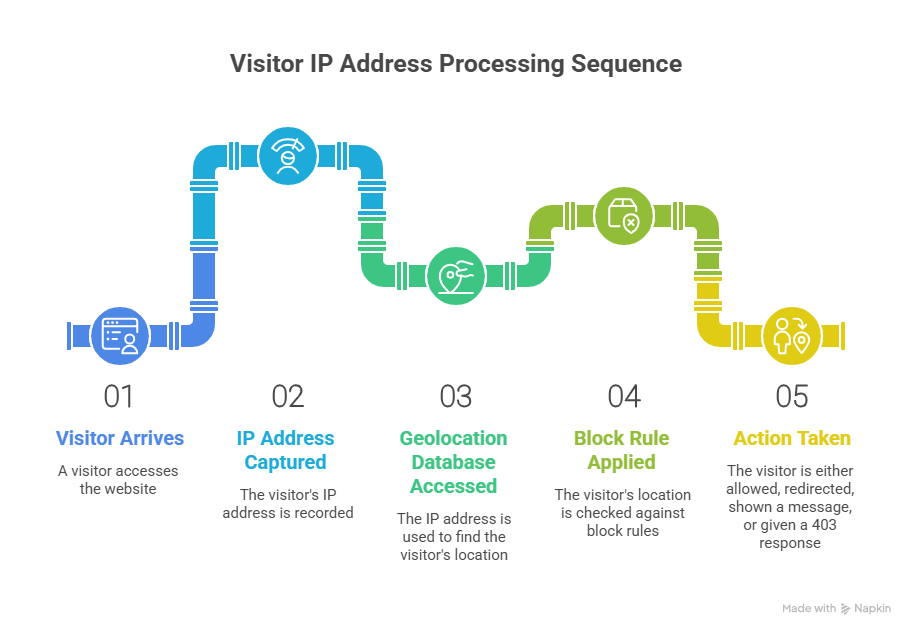
Under the hood, most country blocking relies on IP geolocation. A tool checks the visitor’s IP address against a geolocation database, then applies a rule based on the country it matches.
Geoblocking: the quick definition
Geoblocking is any rule that limits access or changes what someone can do on your site based on their geographic location. In this article, we’re talking specifically about blocking by country.
IP blocking vs. country blocking
These sound similar, but they work differently.
- IP blocking: You block specific IP addresses or IP ranges. This is useful when you know the exact source of abuse, like repeated attacks from a small set of IPs.
- Country blocking: You block a whole country by matching many IP ranges that geolocation databases associate with that country.
Country blocking is broader and easier to manage, but it is also more likely to block legitimate users if your data is inaccurate or users are traveling.
How WordPress detects a visitor’s location
WordPress itself does not “know” a visitor’s country. Location detection typically happens through:
- A plugin that uses an IP-to-country database.
- A CDN or web application firewall (WAF) that adds geolocation data to requests.
- Server-level GeoIP modules (Apache or NGINX) that map IPs to countries.
Once the visitor’s country is identified, your setup can take an action such as:
- Allow access as normal.
- Show a custom message.
- Redirect to another URL.
- Return a 403 Forbidden error.
Common misconceptions
A few things country blocking is not:
- It is not foolproof: VPNs and proxies can bypass many blocks.
- It is not the same as geo personalization: blocking denies access, while personalization changes content or messaging.
- It does not always reduce server load: plugin-based blocking often happens after the request reaches WordPress. CDN or firewall rules are better if performance is the goal.
Why would you block visitors from certain countries?
Blocking traffic from specific countries can be a practical way to protect your WordPress site, mitigate risk, and align access with your business model. It’s not always necessary, but in some cases it’s justified.
Here are the most common reasons.
Security and brute force attacks
If your logs show repeated login attempts, credential stuffing, or automated attacks from certain regions, blocking those countries can reduce noise and lower risk.
This is particularly relevant for:
- wp-login.php
- /wp-admin
- XML-RPC endpoints
Country blocking won’t stop all attacks, but it can reduce volume and make other security measures more effective.
Spam and bot traffic
Form spam, fake account registrations, and comment spam often come in waves from specific regions. If you’re constantly filtering junk submissions from countries you don’t serve, blocking at the country level may save time.
That said, country blocking should be one layer. CAPTCHA, rate limiting, and email verification are still important.
Legal or regulatory restrictions
Some businesses can’t legally provide services in certain countries due to sanctions, export controls, or regulatory requirements.
In those cases, blocking access may be part of a broader compliance strategy. It’s not a substitute for legal advice, but it can help reduce exposure.
E-commerce shipping limitations
If you only ship to specific countries, visitors from unsupported regions may reach checkout and only discover the limitation at the end.
Blocking or redirecting unsupported countries can:
- Prevent abandoned checkouts
- Decrease support requests
- Clarify availability early
Sometimes a redirect with a clear message is better than a hard block.
Licensing or content restrictions
Media platforms, online courses, and digital product sellers may be limited by licensing agreements that restrict distribution by country.
Country blocking can help enforce those boundaries when contracts require it.
Cost control and bandwidth savings
If you’re paying for bandwidth, CDN usage, or compute resources, large volumes of irrelevant traffic from outside your target markets can increase costs.
Blocking non-relevant countries can:
- Reduce server load
- Lower CDN expenses
- Improve performance for your primary audience
Country blocking makes sense when your data supports it. Before implementing it site-wide, review your analytics and server logs to confirm that the regions you plan to block are actually creating measurable problems.
When should you NOT block countries?
Country blocking can solve real problems, but it’s not always the right move. In some cases, it creates more risk than it removes.
Before you block anything, consider the following:
You rely on SEO and international traffic
Search engines crawl from IP addresses around the world. If your rules are too aggressive, you
could accidentally block crawlers and damage indexation.
Blocking entire countries can also:
- Reduce potential backlinks from international sites.
- Limit organic visibility in regions you may want to expand into later.
- Create crawl errors if large parts of your site return 403 responses.
If organic search matters, test carefully and monitor Google Search Console after applying any block.
You serve international customers
If you sell digital products, SaaS subscriptions, or downloadable content, users may access your site while traveling or working remotely.
Blocking their temporary IP location could:
- Lock out paying customers.
- Interrupt account access.
- Increase support tickets.
In these cases, targeted route protection, such as blocking login abuse only, is safer than site-wide blocking.
You’re trying to fix fraud with a single solution
Country blocking is a blunt instrument. Many attackers use VPNs or cloud infrastructure located in “safe” countries.
If fraud or abuse is your main concern, you’ll usually need layered protection like:
- Rate limiting
- Email verification
- Payment fraud tools
- Behavior-based detection
Country blocking can reduce noise, but it won’t eliminate abuse on its own.
You’re not confident in your data
If you haven’t reviewed:
- Server logs
- Analytics by country
- Fraud reports
- Spam origin data
Then blocking may be premature. Always base country restrictions on evidence, not assumptions.
Quick decision checklist: to block or not to block?
Before enabling a country block, ask:
- Do we have clear data showing abuse or cost from this country?
- Do we have customers or future growth potential there?
- Will this affect SEO visibility?
- Can we protect only specific pages instead of the entire site?
- Have we tested the impact in staging or with a limited rule first?
If the answer to most of these is “no,” a full country block probably isn’t the right move.
Different ways to block countries in WordPress
You can block countries at different layers of your website stack. The right method depends on your traffic volume, technical access, and goals.
At a high level, you can block:
- Inside WordPress using plugins
- At the CDN or firewall level before traffic hits your server
- Directly on the server using configuration rules
- On specific forms or pages instead of the entire site
Each approach has tradeoffs in performance, accuracy, and complexity.
Method 1: WordPress plugins (easiest)
For most site owners, plugins are the fastest way to block countries. They detect the visitor’s IP address and apply rules inside WordPress.
Common options include:
- Wordfence
- iQ Block Country
- All In One Security
- Geo Targetly’s WordPress plugin
Performance impact: Plugin-based blocking happens after WordPress loads. That’s usually fine for moderate traffic, but not ideal if you’re trying to stop large-scale bot traffic.
Method 2: CDN and firewall blocking
If you use a CDN or web application firewall, you can block countries before requests reach your WordPress server.
Examples include:
- Cloudflare country rules
- Hosting provider firewalls
- Third-party WAF services
Best for: High traffic sites, e-commerce stores under attack, or businesses focused on performance.
Method 3: Server level blocking (advanced)
You can block countries directly on your server using GeoIP modules or IP range rules.
Examples:
- Apache with GeoIP
- NGINX with GeoIP2
- Manual IP range rules in .htaccess
Best for: Developers, sysadmins, or teams managing VPS or dedicated infrastructure.
Method 4: Form and page level blocking
Sometimes you don’t need to block an entire country. You only need to protect specific entry points.
Common targets include:
- Contact forms
- Login and registration pages
- WooCommerce checkout
- Lead capture forms
Best for: Sites that only experience abuse in specific areas such as forms or checkout.
Comparison table
Step by step: how to block a country using a plugin
If you don’t want to touch server settings or CDN rules, a WordPress plugin is the simplest way to block a country.
The exact interface varies by plugin, but the process is usually similar.
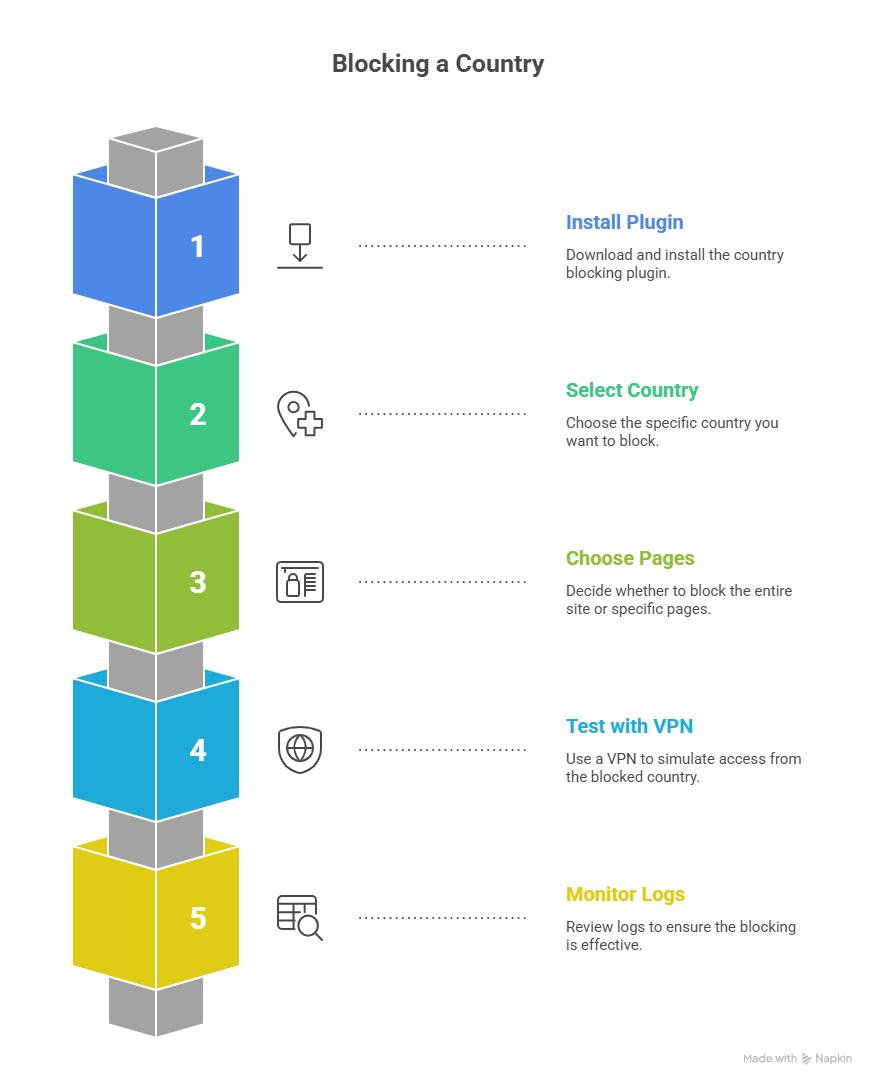
Step 1: Install a country blocking plugin
From your WordPress dashboard:
- Go to Plugins → Add New
- Search for a plugin that supports country blocking, such as Wordfence, iQ Block Country, or All In One Security
- Click Install, then Activate
If you’re using a premium plugin, you may need to upload the ZIP file and enter a license key.
Step 2: Enable country blocking
After activation:
- Open the plugin’s settings panel
- Navigate to the country or geolocation section
- Select the countries you want to block
- Choose where the rule applies:
- Entire site
- Login and admin only
- Specific pages
- Entire site
Some plugins allow you to whitelist certain IP addresses even if their country is blocked.
Step 3: Choose the block action
Most plugins let you decide what happens when a blocked visitor tries to access your site.
Common options include:
- Return a 403 Forbidden error
- Show a custom message
- Redirect to another page
If you’re blocking for shipping or licensing reasons, a redirect to an explanation page is usually better than a blank error screen.
Step 4: Update or verify the IP database
Country detection relies on an IP-to-country database. Some plugins update this automatically. Others require manual updates.
Check:
- Whether your plugin uses an internal database
- How often it updates
- Whether automatic updates are enabled
Outdated geolocation data can cause false positives.
Step 5: Test your rule
Before considering the setup complete:
- Use a VPN to simulate traffic from a blocked country
- Confirm the expected behavior (error or redirect)
- Test from an allowed country to confirm access still works
Also check your analytics and error logs over the next few days to catch unintended blocks.
When a plugin is enough
Plugin-based blocking works well if:
- Your traffic volume is moderate
- You don’t need infrastructure-level protection
- The issue is limited to login, forms, or specific abuse patterns
If you’re dealing with large-scale bot traffic or performance strain, CDN or firewall-level blocking may be a better fit.
SEO impact of blocking countries in WordPress
Blocking countries can protect your site, but it can also affect how search engines crawl and index your content. If organic traffic matters to your business, you need to implement country blocking carefully.
Here’s what to watch.
Crawlability and indexing
Search engines use data centers around the world to crawl websites. If your country block returns a 403 response to those IPs, parts of your site may not be crawled or indexed properly.
Risks include:
- Pages not being indexed
- Reduced crawl frequency
- Crawl errors in Google Search Console
After enabling country blocking, monitor:
- Crawl errors
- Index coverage reports
- URL Inspection results for key pages
If search visibility is important, test thoroughly before rolling out site-wide blocks.
Blocking Googlebot by mistake
Most country blocking rules rely on IP detection. If a crawler happens to access your site from an IP range associated with a blocked country, it may be denied access.
To reduce this risk:
- Test important URLs in Google Search Console
- Monitor crawl stats after deployment
- Avoid overly broad rules that block large IP ranges without validation
Don’t rely only on user-agent filtering. User agents can be spoofed, and IP-based rules are more reliable when configured correctly.
Geo targeting vs. geoblocking
It’s important to distinguish between geotargeting and geoblocking.
- Geotargeting: shows different content, currency, or messaging based on location.
- Geoblocking: denies access entirely.
If your goal is to improve relevance for different regions, geotargeting is usually safer for SEO. Search engines can still crawl your content, and users aren’t locked out. Hard blocking should be reserved for cases where access must be restricted.
Redirects vs. hard blocks
A 403 response tells search engines that access is forbidden. That’s appropriate for true restrictions, but it removes that URL from some regions entirely.
In some cases, a redirect to a region-specific page or an informational notice may be better. This can preserve crawl paths while still clarifying availability to users.
Choose the response type intentionally:
- Use 403 for strict legal or security restrictions.
- Use redirects when you want to guide users without completely denying access.
Best practices to avoid SEO damage
If you decide to block countries, follow these safeguards:
- Start with a limited rule instead of blocking site-wide immediately.
- Validate key pages in Search Console after deployment.
- Monitor organic traffic trends by country.
- Document your rules so future changes don’t accidentally override them.
- Reassess blocks periodically based on analytics data.
Country blocking doesn’t automatically hurt SEO, but careless implementation can. If search traffic is part of your growth strategy, test first, deploy gradually, and monitor closely.
Best practices for WordPress country blocking
Country blocking works best when it’s driven by data and applied carefully. The goal isn’t to shut out traffic at random. It’s to solve a specific problem without creating new ones.
Here’s how to approach it strategically.
Start with analytics, not assumptions
Before blocking any country, review:
- Traffic by country in Google Analytics
- Server logs
- Fraud or chargeback reports
- Spam origin patterns
Look for measurable issues such as:
- High bounce rates from specific regions
- Repeated login abuse
- Disproportionate spam submissions
If the data doesn’t show a problem, blocking may not be justified.
Block high risk countries only
Avoid blocking entire regions unless you have a strong reason. A narrow rule based on clear abuse patterns is safer than a broad “block everything except X” approach.
Targeted blocking:
- Reduces false positives
- Protects legitimate users
- Minimizes business risk
Country blocking should solve a defined issue, not act as a blanket filter.
Use CDN or firewall rules when performance matters
If your goal is to ease server strain or stop large volumes of unwanted traffic, blocking at the CDN or firewall level is more effective than using a WordPress plugin.
Blocking at the infrastructure layer:
- Stops requests before WordPress loads
- Protects server resources
- Scales better for high traffic sites
Use plugin-level blocking when convenience matters more than infrastructure efficiency.
Test before applying site-wide rules
Never enable site-wide country blocking without testing.
Before going live:
- Apply the rule in staging if possible
- Simulate traffic from blocked and allowed countries
- Confirm login, checkout, and key pages behave correctly
Start with limited scope rules, such as login-only protection, before expanding.
Monitor business impact
After deployment, monitor more than just blocked requests.
Track:
- Bounce rate by country
- Conversion rate changes
- Support tickets related to access
- Organic traffic shifts
If legitimate users are affected, adjust the rule quickly.
Log and review blocked traffic
Maintain logs of:
- Blocked IP addresses
- Blocked countries
- Frequency of blocked requests
Review this periodically to confirm the block is still necessary. Traffic patterns change, and rules that made sense six months ago may no longer be relevant.
Country blocking should be treated as a controlled operational rule, not a permanent setting. When driven by real data and monitored over time, it can reduce risk without hurting growth.
Common mistakes to avoid
Country blocking can work well, but it’s easy to overdo it or set it up in a way that creates new problems.
Common mistakes:
Blocking search engine crawlers: If Google cannot crawl your site consistently, indexing and rankings can drop. Check Search Console after changes.
Blocking paying customers by accident: Travelers, remote workers, and international teams may access your site from “unexpected” countries.
Treating country blocking as fraud prevention: VPNs and proxies bypass simple blocks. Use layered protections for signups and checkout.
Using outdated IP databases: If your geolocation data is stale, you’ll block the wrong people and miss the ones you meant to stop.
Blocking at the WordPress level when you need performance protection: If you are under heavy bot traffic, plugin blocking still lets requests hit your server.
Applying site-wide blocks when you only need a partial block: Often you only need to protect forms, wp-login.php, checkout, or admin routes.
Forgetting a user-friendly outcome: A blank 403 page is fine for attacks, but for legitimate visitors it can be better to show a short message or a redirect with next steps.
Use cases by business type
Different businesses block countries for different reasons. The right method depends on whether your goal is security, compliance, or operational control.
How Geo Targetly helps block visitors by country in WordPress
If you need more flexibility than basic WordPress geo-blocking plugins provide, Geo Targetly’s Geo Block feature gives you precise location-based control without editing server files or maintaining IP ranges manually.
Instead of relying on static allow or deny lists, you create geographic rules in the GeoTargetly dashboard and apply them to your WordPress site through a lightweight integration.
With Geo Block, you can:
- Block entire countries from specific URLs or your full site
- Restrict access by country, region, or city
- Display custom access messages instead of generic 403 errors
- Redirect restricted visitors to alternative pages
- Combine geographic targeting with URL-level logic
This goes beyond the simple country-level blocking most plugins offer. You’re not limited to site-wide rules, and you’re not locked into a single response type.
If you need controlled geographic access inside WordPress without touching .htaccess or firewall rules, Geo Block provides a structured, scalable option.
You can explore the Geo Block feature and see how it fits your setup, and try a 14 day free trial.
Using the Geo Targetly WordPress plugin
Geo Targetly also offers a WordPress plugin that connects your site to its geo tools in minutes.
The plugin:
- Installs like any standard WordPress plugin
- Requires no coding or server configuration
- Centralizes rule management in one dashboard
- Works with any theme or page builder
Once connected, you manage all geographic rules from your Geo Targetly account, not scattered across security plugins or server files.
If you want more granular control than basic geoblock plugins allow, the WordPress integration makes it easy to get started.
Geo Redirection - Geo Targetly
How to test and monitor your country blocking rules
Setting up country blocking isn’t the final step. You need to confirm the rules work as intended and continue to monitor their impact over time.
Here’s how to do that properly.
Test access from blocked and allowed countries
Before rolling out rules site-wide:
- Use a VPN to simulate traffic from a blocked country.
- Confirm the correct behavior, such as a 403 response or redirect.
- Switch to an allowed country and verify full access still works.
Test key areas of your site, including:
- Homepage
- Login page
- Checkout or payment flow
- Forms and lead capture pages
This helps you avoid accidental lockouts.
Validate important URLs in Search Console
If organic search matters to your business:
- Inspect key URLs in Google Search Console.
- Confirm they return a normal response for crawlers.
- Monitor crawl stats and coverage reports after deployment.
If indexing drops unexpectedly, review your country rules immediately.
Monitor analytics by country
After enabling blocking, review traffic trends.
Look for:
- Sudden drops in sessions from allowed countries
- Unexpected changes in bounce rate
- Conversion rate shifts
- Increases in support tickets related to access issues
Country-level filtering in Google Analytics can help you see whether the rule is affecting legitimate traffic.
Review server or plugin logs
Most security plugins, CDNs, and hosting providers log blocked requests.
Check:
- Which countries are being blocked most frequently
- Whether the volume aligns with your original problem
- If legitimate IPs are being denied
If you see unexpected patterns, refine your rule rather than leaving it untouched.
Reassess periodically
Traffic patterns change. A country that once generated high spam volume may no longer be a problem.
Schedule periodic reviews of:
- Blocked country list
- Abuse reports
- Fraud rates
- Traffic distribution
Country blocking should be an adaptive rule, not a permanent assumption.
When testing and monitoring are part of your workflow, country blocking becomes a controlled safeguard instead of a risky experiment.
Final thoughts
Blocking countries in WordPress is straightforward, but it should be intentional.
Choose the method that matches your traffic volume and risk level, whether that’s a plugin, CDN rule, or server configuration. Base the decision on real data, not assumptions.
Before enabling country blocking:
- Confirm there’s a measurable problem
- Select the appropriate layer
- Test thoroughly
- Monitor impact on traffic and conversions
Country blocking works best as a targeted safeguard, not a default setting. Applied carefully, it can reduce abuse and control access without harming user experience or search visibility.
For flexible rule-based control inside WordPress, Geo Targetly provides granular country, region, and city targeting. For infrastructure-level protection, CDN or firewall rules remain the strongest layer.
FAQs
Can I block one country but allow Googlebot?
Yes, but do it carefully. Some setups can accidentally block crawlers if your rules are too broad. After changes, use Google Search Console URL Inspection to confirm Google can fetch key pages, and monitor crawl stats and errors.
Will blocking countries hurt my SEO?
It can. If search engines cannot crawl important pages, indexing can suffer. Blocking can also reduce who can link to your content. If SEO matters, consider redirecting or showing an informational message instead of hard blocking, and always validate in Search Console.
Is plugin blocking or CDN blocking better?
CDN or firewall blocking is usually better for performance because it can stop traffic before it hits your server. Plugin blocking is easier to set up, but requests still reach WordPress, which can be a downside under heavy unwanted traffic.
Can I redirect instead of blocking?
Yes. Redirects can be a better experience when you want to explain availability, shipping limits, or legal restrictions. It’s also useful when you want to avoid a hard “denied” outcome for legitimate visitors.
How accurate is IP geolocation?
It’s generally accurate at the country level, but not perfect. Accuracy drops with VPNs, mobile networks, and some corporate networks. Treat it as a strong signal, not a guarantee.
Can I block by city or region?
Sometimes. It depends on the tool you use and the granularity of its geolocation data. Many CDNs focus on country-level rules, while specialized geolocation tools can support region or city targeting.

Copywriter